How do I give Turing permissions for screen sharing, camera, and microphone usage?
Last updated: September 17, 2026
Grant Turing permissions for proctoring
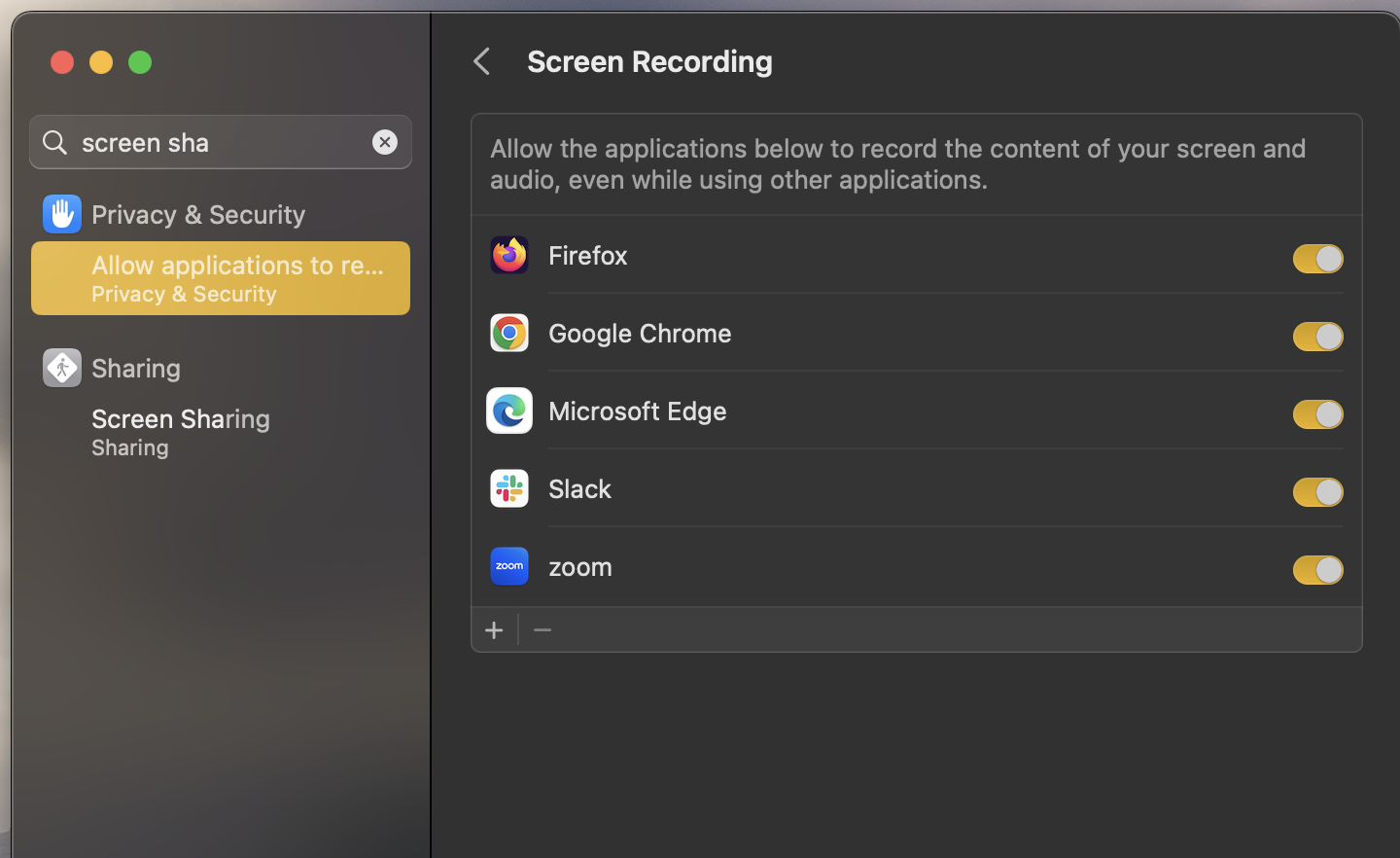
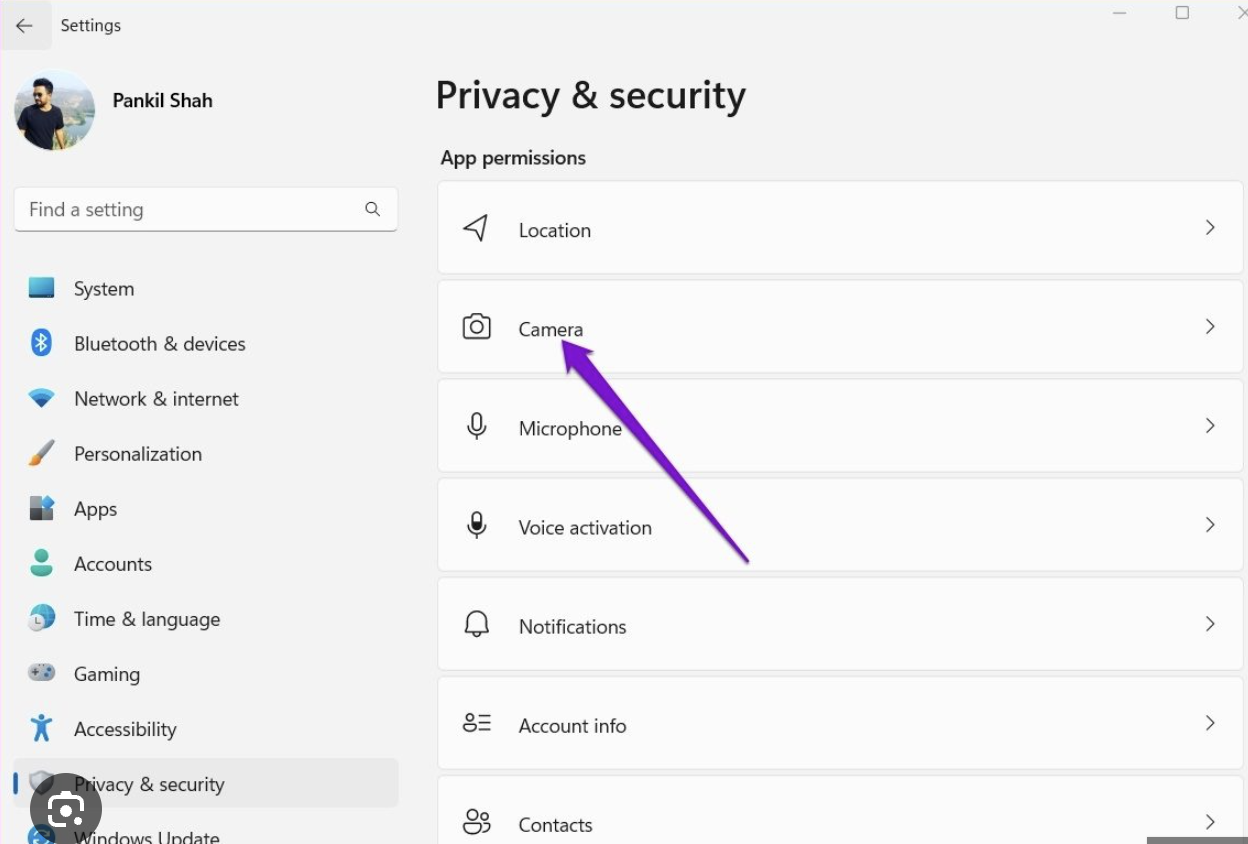
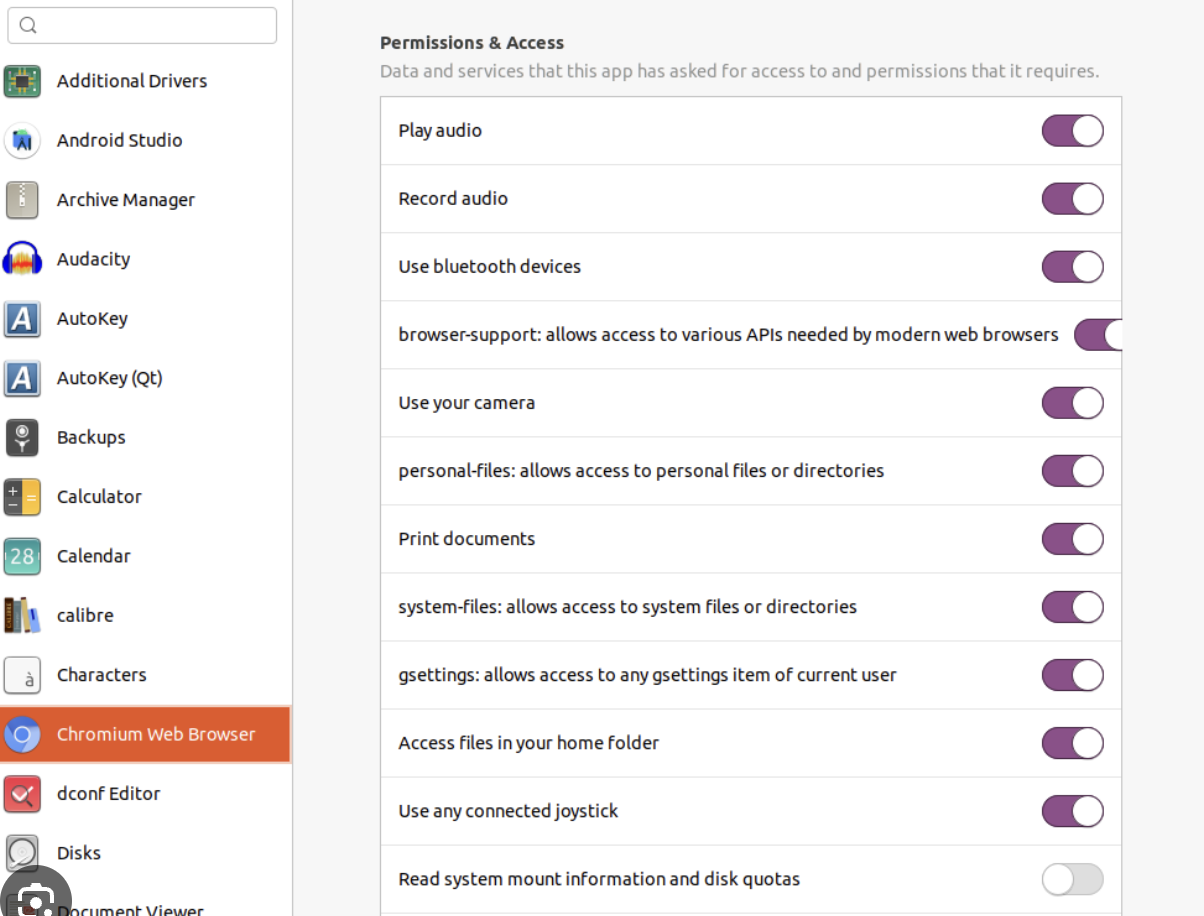
Your system/OS should provide your browser with screen sharing/camera/microphone permissions (you might have to refresh the browser after granting permissions).
Before You Start
Ensure your browser is properly configured before granting permissions:
Supported Browsers:
Chrome 74 or later
Edge 79 or later
Latest version of Firefox
Initial Setup:
Do not use Incognito or Private browsing mode
Disable VPN connections
Disable ad blockers and browser extensions
Clear your browser cache and cookies, then reload the page
If you see errors like "Webcam and microphone recordings paused" or "Your system doesn't have a audio/video device available", complete these steps first before proceeding with the permission settings below.
MacOS
Windows
Linux
Browser level permissions :
Your browser will request permission for sharing screen, microphone, and camera access. Upon completing the permissions, you might have to refresh the browser.
Screen sharing > Make sure to share the entire screen! Sharing only a window or tab may cause the screen sharing to pause.
Camera and Microphone
Don’t use virtual video/audio devices like iPhone cameras, OBS, etc. Your attempt will be invalidated in such a case.Chrome
at the top left, click > View site information
select to allow Camera and Microphone
if your camera or microphone is blocked on browser settings at the top right, click: More> Settings > Privacy and Security > Site settings
Make sure the Turing URL is listed here
Firefox
click > Allow, then click OK.
Edge
in Microsoft Edge > Settings and more and then select Settings.
select Cookies and Site Permissions > Camera or Microphone.
Opera
click > Allow
if the pop-up doesn't show go to Settings
Click Advanced in the left sidebar > Privacy & security > Site settings.
Click Camera > turn on Ask before accessing (recommended).
Click Microphone > turn on Ask before accessing (recommended).
You can also set which camera or microphone you wish Opera to use by default if you have more than one connected to your computer. Use the dropdown menu to set your camera preference.
Auto disqualification
During the assessment, you must not pause or stop screen sharing/audio/video for any reason more than 4 times, after which they will be auto-disqualified from the test. Note that you will not be able to attempt the test again for 90 days.