Apply for Jobs at Turing
Last updated: August 25, 2026
Follow the steps below to apply for open roles and projects:
1. Log in to your account at https://work.turing.com/jobs
2. Go to the Jobs page. You can use the available filters to browse roles by skill or category (e.g., Software, ML/Data/AI) to help you find relevant positions.
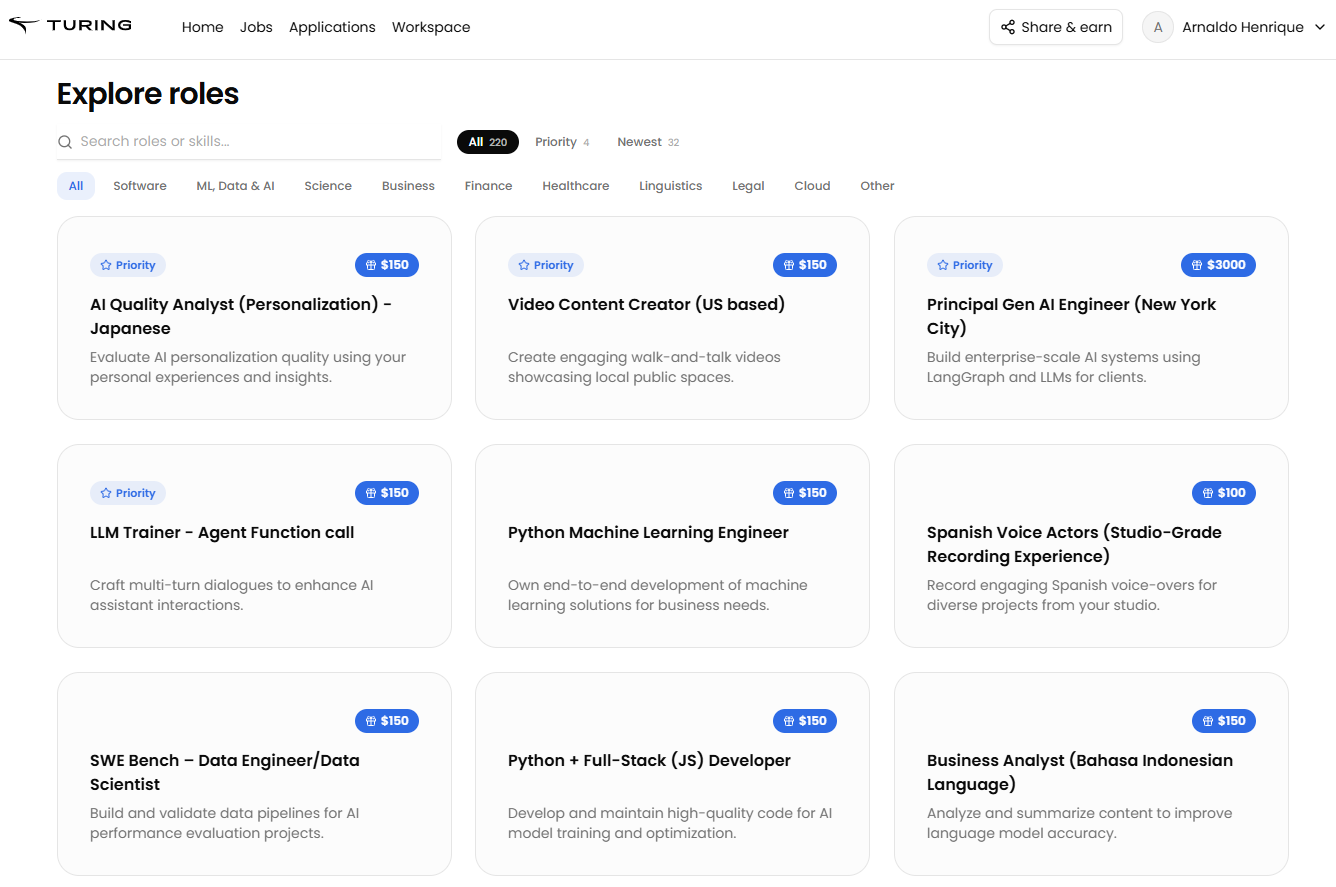
3. Select a job of your interest and click on Apply Now
4. Review the job description carefully to understand the requirements.
5. Complete a short form (<2 mins) that helps us with some additional information.
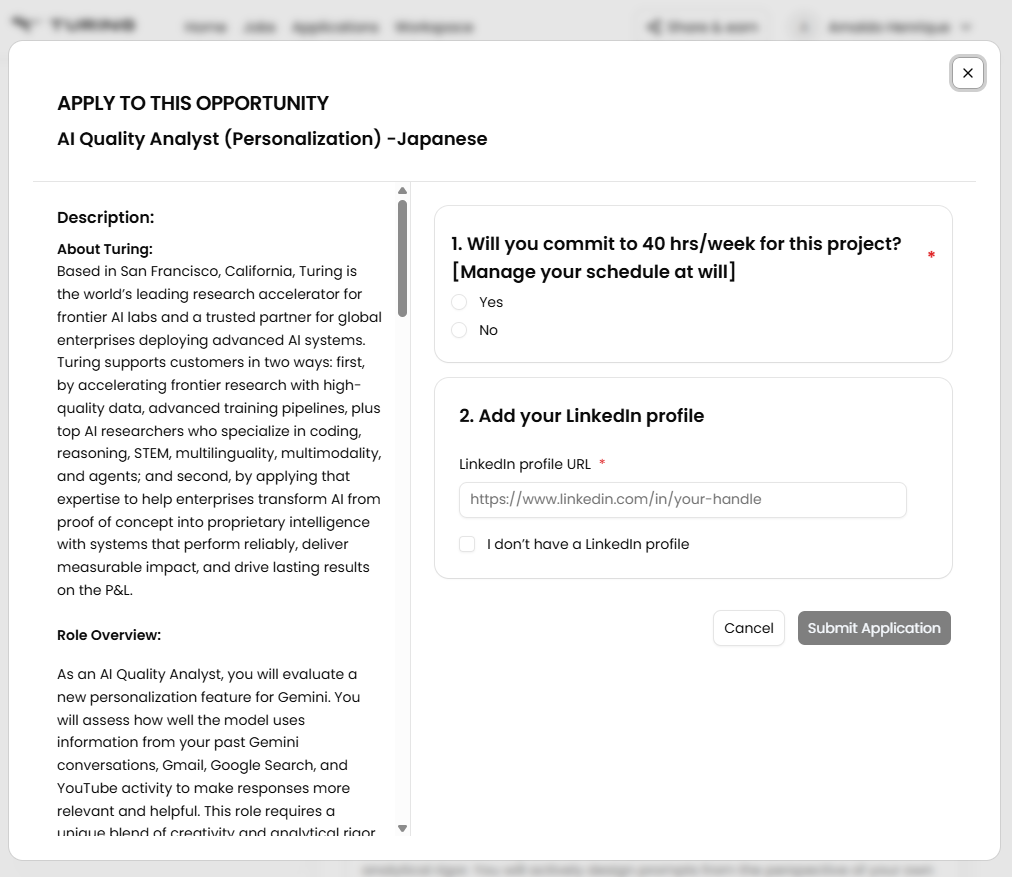
6. Submit your application.
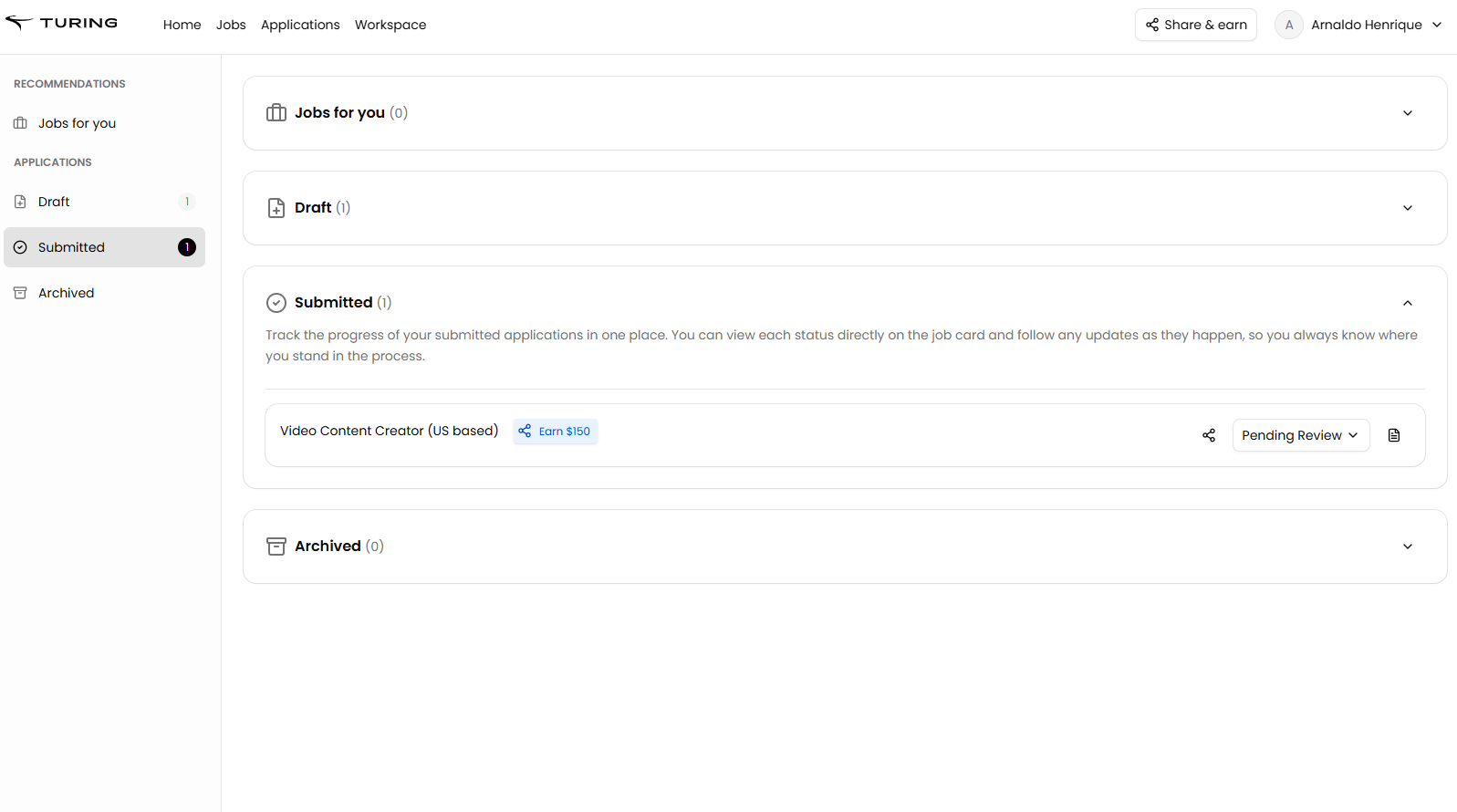
Once submitted, your application will appear under Submitted Applications and will be reviewed by our team.
Troubleshooting Application Submission Issues
If your application still appears under "Drafts" after you've completed the submission process, try these steps:
Refresh the page and log in again
Clear your browser cache and cookies
Check whether there is any pending "Submit" button remaining in the assessment
Verify on your dashboard whether the role is listed under "Drafts" or "Submitted"
If the application is under Drafts, open it and look for a Submit/Finalize button to move it to Submitted Applications
Continue Application Button Not Responding
If the ‘Continue Application’ button is not responding when you try to submit your application, try these troubleshooting steps in order:
Clear your browser cache and cookies
Try logging out and logging back in
Switch to a different supported browser (Google Chrome is recommended)
Disable browser extensions, such as ad blockers or script blockers
Try accessing the application from a different device or network
Ensure your browser is updated to the latest version
File Upload Errors During Application
If you encounter file upload errors (such as "File upload could not be completed, please try after sometime"), follow these troubleshooting steps in order:
Use a supported desktop browser: Chrome 74+, Edge 79+, or the latest Firefox
Turn off VPN, ad blockers, and browser extensions
Important: Do not use Incognito/Private Browsing mode for assessments or file uploads. If you are in incognito mode, exit by pressing Ctrl + N (Windows) or Cmd + N (Mac) to open a normal browser window.
Clear browser cache and cookies, then reload the page
Ensure required site permissions are allowed (screen/mic/camera if prompted)
If the issue persists, switch to a different browser or try a different computer/network
If the problem continues after trying these steps, contact support and provide:
The exact error message and screenshot
File details (type and size)
OS and version
Browser and version
Whether VPN/extensions were active during the attempt
If the issue persists after trying these steps, contact support and provide:
A screenshot or screen recording of what happens when clicking the button
The URL/page where the issue occurs
The browser and device you are using
Verifying Your Application is Complete
To confirm your application has been successfully submitted:
Check your Applications dashboard at https://work.turing.com/dashboard/applications
Look for the role under the Submitted or Pending Review section. The dashboard will show your application status (such as 'Pending Review' or 'In Review')
If any assessments are required, you'll see prompts to complete them
If no pending steps are shown in your application, this means your application is currently in review
What to Expect After Submission
Review Timeline: Application reviews typically take between 48 hours to 6 weeks from the time of application completion. The timeline varies depending on client feedback and the volume of applications received.
Notification Policy: Our team will reach out directly to candidates who are selected to proceed to the next step. Due to high application volume, not all candidates will receive a notification if they are not selected. If you have not heard back within 6 weeks of completing your application, this typically indicates you were not selected for that particular position.
Application Status and Archived Applications: If your application is not selected to move forward, the status will update from "In Review" to reflect the final decision. Applications that were not selected can be found in the Archived Applications section under the Jobs page.
Feedback: Individualized feedback explaining why an application was not selected is not provided due to the nature of the evaluation process.
Future Opportunities: Not being selected for a current opportunity does not remove you from future consideration. Our team continues working to identify new opportunities that align with your skills and experience. You will be notified via email or WhatsApp when new recommendations or interview opportunities become available. You can also browse new openings at https://work.turing.com/jobs.
Reapplying to Roles: You can submit a new application if a role is reposted. Each new application is reviewed independently, and prior outcomes do not prevent reconsideration. However, if you receive a formal rejection for a role, you must wait three months from the rejection date before reapplying to the same role. This 3-month waiting period only applies after a formal rejection has been issued.
Managing Your Applications
Withdrawing Applications: Applications cannot be withdrawn once submitted. If you decide not to proceed with an opportunity, you can reject any offers you receive.
Note: Being redirected to your resume page after applying is part of the standard application flow and does not indicate an error.
Test Requirements for Job Applications
Some positions at Turing may require you to complete specific tests as part of the application process.
When to Expect the Test
At the time of submitting your application, you will be redirected to the testing environment to complete the required assessments.
Before Starting Your Assessment
To ensure your assessment runs smoothly, complete these steps before beginning:
Disable all browser extensions
Clear browser cache and cookies
Disable VPNs and blockers
Use a supported browser
Allow required permissions
Share your entire screen — When prompted by the proctoring system, you must share your entire screen, not just a window or tab. This is required for the assessment to function properly.
Use a desktop computer
Ensure adequate internet speed
Keep your device plugged in
Browser Requirements for Assessments
Important: Assessments cannot be taken in Incognito Mode or Private Browsing mode. Always use a normal browser window when completing tests. If you are currently in incognito mode, exit by pressing Ctrl + N (Windows) or Cmd + N (Mac) to open a normal browser window.
WebSocket Connections: Ensure WebSocket connections are not blocked by your network or firewall. Test your connection at https://websocketstest.com/ or https://libwebsockets.org/testserver/.
To verify WebSocket connectivity is working correctly, test your connection at https://websocketstest.com/ or https://libwebsockets.org/testserver/. A successful test should show:
WebSockets Supported: Yes
Connected over Port 443 (SSL): Yes
Data Send/Receive: Yes
Echo Test: Yes
No HTTP proxy detected
If WebSocket connections fail, follow these troubleshooting steps in order:
Disable VPNs, proxies, ad blockers, and privacy extensions
Fully close all assessment tabs
Reopen in a supported browser (Chrome 74+, Edge 79+, or latest Firefox)
Clear browser cache and cookies
Ensure you are NOT in Incognito/Private mode (press Ctrl+N on Windows or Cmd+N on Mac to exit)
Grant camera and microphone permissions at both browser and OS level
Test WebSocket connectivity again at the URLs above
If issues persist, try a different network or device
Resuming Paused Assessments
If your assessment shows as "Paused" or you need to continue an incomplete test:
Navigate to https://work.turing.com/dashboard/applications
Open the application page for your specific position
Click "Continue" on each paused assessment to complete it
Troubleshooting: If an assessment link appears truncated or cut off in the portal and you cannot click it, try zooming out in your browser (Ctrl + minus key on Windows, or Cmd + minus key on Mac) to reveal the full link.
Alternative method: If the assessment link is not working or loading properly, visit the Jobs Page directly at https://work.turing.com/jobs to view active job listings and start or continue your assessment from there. This alternative path ensures your progress is properly tracked in the system.
Assessment Card Visible But Not Clickable
If an assessment card is visible but you cannot click on it to start or continue, try these troubleshooting steps:
Zoom out in your browser to 80-90% so the full card and button render properly
Use a desktop browser (Chrome, Edge, or Firefox) rather than mobile
Disable VPN, ad blockers, and browser extensions
Use a normal browser window instead of Incognito mode
Clear browser cache and cookies, then retry
Try accessing the assessment directly from the Jobs page at https://work.turing.com/jobs
If the issue persists, contact support with:
Your OS and version, browser and version
Screenshot of the page showing the unclickable card
Your timezone
Whether VPN or extensions are enabled
Whether you're using normal or Incognito mode
A screen recording if possible
Missing 'Next' Button on Assessment Welcome Page
If you cannot proceed past the 'Welcome to the assessment' page because there is no active 'Next' button, this may indicate that no tests are required for the position you applied to. To verify:
Navigate to https://work.turing.com/dashboard/applications
Go to the Submissions tab
Click on your application to check whether tests are required for your specific position
Assessment Stuck in Draft Status
If an assessment shows "Draft" status even though you've completed it, try these steps before contacting support:
‘No Challenge Found’ Error When Starting Assessment
If you see a "no challenge found" error after clicking Start Quiz, try these troubleshooting steps in order:
Refresh the page and try again
Clear browser cache and cookies
Disable VPN, ad blockers, and browser extensions
Switch to a supported desktop browser (Chrome 74+ or Edge 79+) and retry
Note: This error can also appear if the role you applied to does not require an assessment. To verify whether tests are required for your position, navigate to https://work.turing.com/dashboard/applications, go to the Submissions tab, and check your specific application.
Sign out of your account, clear your browser cache, and sign back in
Check the Assessments page using a desktop browser (not mobile)
If you have multiple Turing accounts, confirm you completed the assessment on the correct account
If the issue persists, contact support with the following information:
Email address on your Turing account
Screenshot of the assessment page showing the Draft status
Approximate date and time you completed the assessment
Whether you used the in‑platform assessment link or an external link
You can check your application status and view all submissions by clicking on the "Submissions" tab in your applications dashboard.
If you need to access pending assessments later, go to https://work.turing.com/dashboard/applications and open your application to see any "Pending steps" or tests.
Important Notes
After Completing Your Assessment
You may not receive an immediate confirmation email after completing the assessment.
Our team will review all submitted assessments and reach out directly to candidates who are selected to proceed to the next step.
This outreach may not happen immediately after you complete your assessment.
Scheduled Maintenance: During scheduled maintenance windows, you may experience slower performance or intermittent delays when accessing assessments or the application portal. Your profile, application progress, and any information you have already submitted will not be affected or lost during maintenance.
Troubleshooting: If you experience technical issues during an assessment, first verify your environment meets all requirements listed in the “Before Starting Your Assessment” section above. Try using a different supported browser and, if possible, a different computer to rule out local system or connection issues. If an assessment session terminates prematurely due to technical issues, contact us with the following details—they can reset your testing link or clear your session to allow you reattempt the assessment:
OS and version, browser and version
Whether you shared entire screen or a window
Normal or Incognito mode
Any VPN or extensions active
A HAR file (network activity log) from your browser
Screenshots and/or screen recording of the full issue
When tests are required for a position, completing them is mandatory for your application to be evaluated. Not all positions require assessments or tests. If an assessment link redirects you back to Turing or you see a “No Vetting Flow Found” message, the job you applied for may not require tests. Applications are not reviewed until all required assessments are completed, so be sure to finish them promptly.
Troubleshooting: If you experience technical issues during an assessment, try using a different supported browser and, if possible, a different computer to rule out local system or connection issues. If an assessment session terminates prematurely due to technical issues, contact us with details of the problem—they can reset your testing link or clear your session to allow you to reattempt the assessment.
Some opportunities also have a live interview either with someone at Turing or a vendor partner. Our team will contact you directly with next steps.